How do I auto-categorize transactions in Inkle Books?
Inkle Books assigns a category to your transactions as they arrive, based on the description and payment source, and suggests categories for the ones it doesn't recognize. You confirm rather than choose. This matters because categorizing is the slowest part of closing your books, and most of it is the same forty recurring charges you categorized last month.
You'll find it under Transactions in the left nav.
Why transactions need a category
A category tells your books what a transaction is. A payment isn't just money leaving your account, it's software spend, or payroll, or an office cost, and which one it is decides where it lands on your income statement and how it's treated at tax time.
Until a transaction is categorized, it can't appear correctly in your financials. That's why categorization comes before reports: your P&L is only as accurate as the categories underneath it.
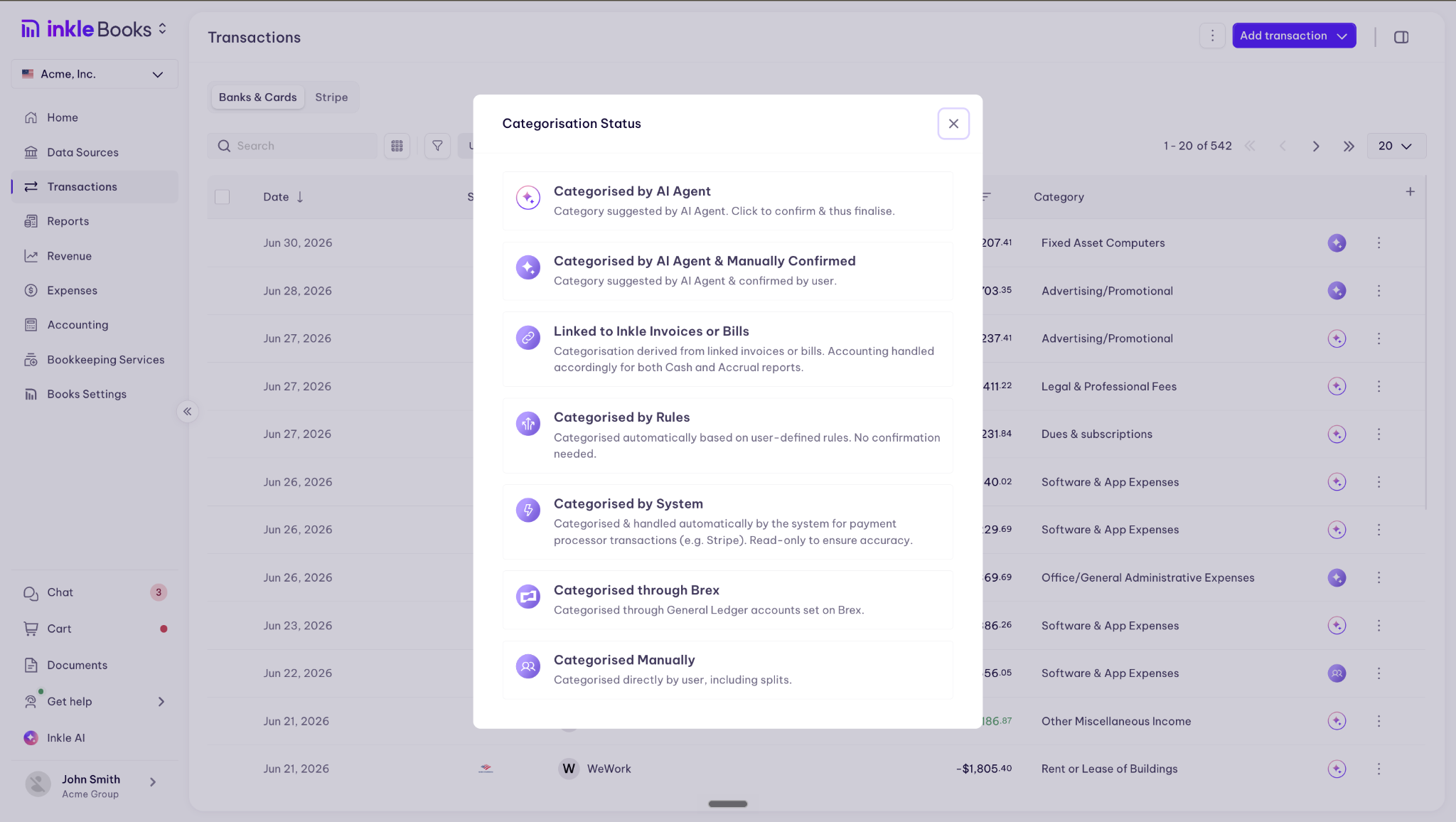
Verified means you've confirmed the category. Inkle can suggest, but nothing is settled until you approve it, because the description on a bank feed doesn't always tell the truth about what a payment was for.
How do I categorize my transactions?
Step 1: Verify what's already categorized
Most transactions arrive with a category already assigned, matched on the description and payment source. Payments through platforms like Stripe or PayPal come in as income. Office supplies and software subscriptions sort into the matching expense categories.
These rows carry a green tick at the end. Click the tick to verify and confirm the category.
Step 2: Accept or change the AI suggestions
For transactions that arrive uncategorized, our AI engine suggests a category based on the vendor and description.
Click the suggestion if it's accurate. If it isn't, choose the right category from the options that follow.
Step 3: Bulk categorize the repeats
For repetitive transactions, you can apply the category you just selected to all of them at once. Categorize one, categorize all, in a single step.
This is the step that clears the long tail: the same subscription charged twelve times, the same vendor paid every fortnight.

FAQ
What does the green tick mean?
Inkle Books has already matched the transaction to a category based on its description and payment source. Clicking the tick confirms it.
Do I have to check every transaction?
Yes, in the sense that nothing is final until you verify it. The green tick is a prompt to check, not a signal that checking is done. A vendor that gets matched to the wrong category stays wrong in your books if you confirm without looking.
What about cash payments and transactions from accounts I haven't connected?
Auto-categorization only runs on transactions that reach Inkle Books through a connected data source. Anything outside that, including cash purchases and business spend on a personal card, you'll enter yourself.
What if the same vendor keeps getting categorized wrong?
Set up rule-based categorization, which lets you define how specific transactions should always be treated rather than correcting them one at a time.
Still have questions?
Reach out to our support team if you have any additional questions regarding filing.