All your reports, one screen away
We built the All Reports page so you don't have to hunt through different tabs every time you need a report. Here's how to find and download everything from a single screen.
Where to find it
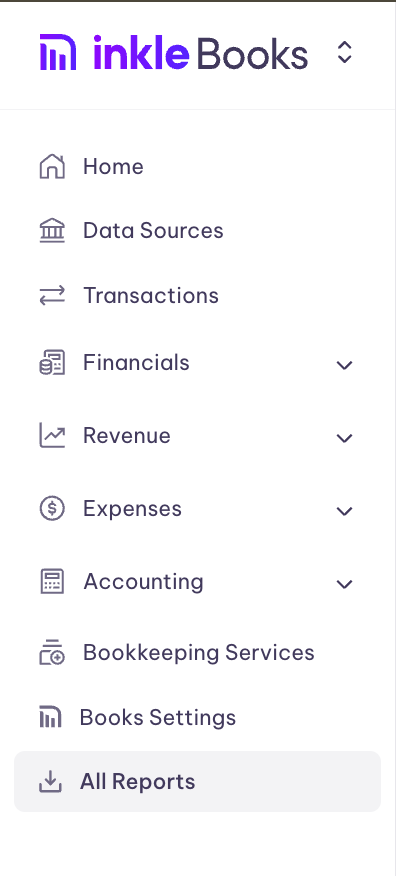
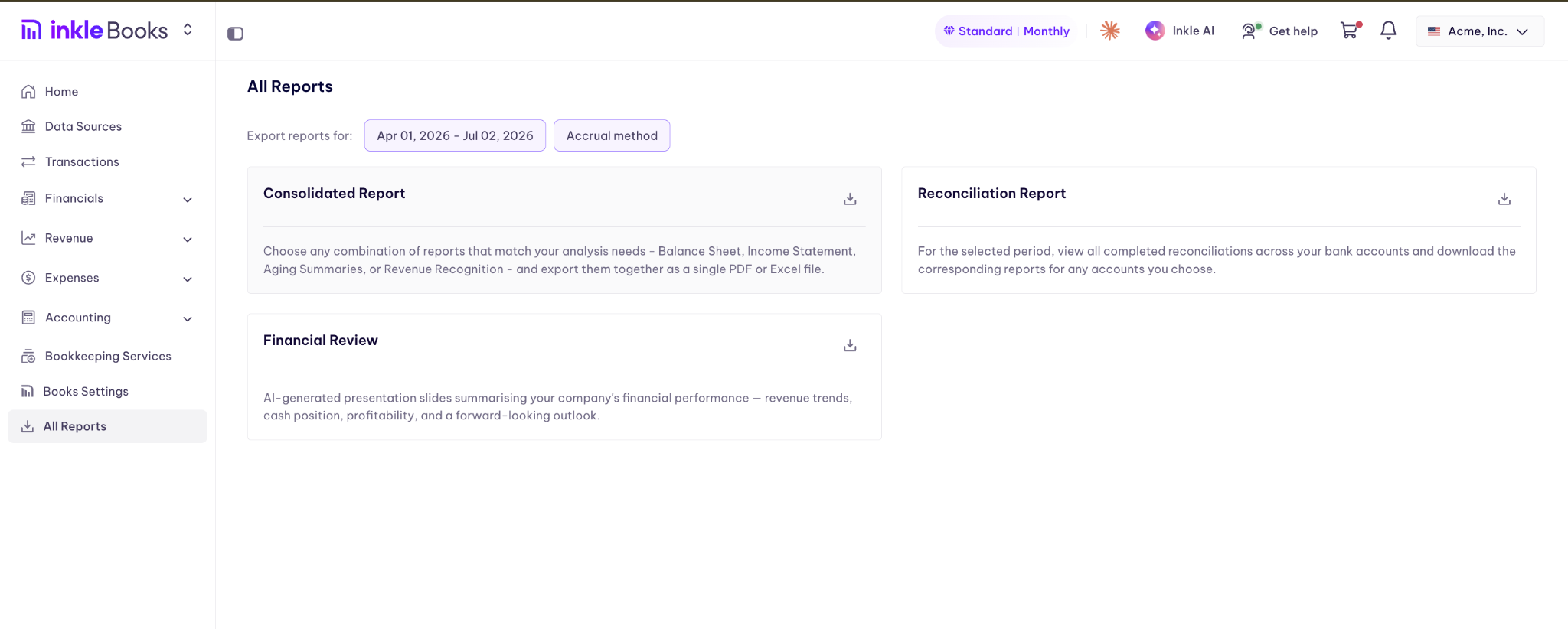
Go to the All Reports section in Inkle Books. You'll see every report type available to you, laid out as individual cards.
Step 1: Set your export parameters
At the top of the page, choose:
- Date range: click the date field (defaults to a rolling period, e.g. Apr 01, 2026 - Jul 02, 2026) and select the period you want your reports to cover.
- Accounting method: choose between accrual and cash, depending on how you want your numbers calculated.
These two settings apply across every report you download from this page, so set them first.
Step 2: Pick the report you need
Three report types are available:
Consolidated Report Choose any combination of statements, Balance Sheet, Income Statement, Aging Summaries, or Revenue Recognition, and export them together as a single PDF or Excel file. This is the fastest option when you need multiple statements at once.
Reconciliation Report View all completed reconciliations across your bank accounts for the selected period, then download the reports for whichever accounts you choose.
Financial Review AI-generated presentation slides summarizing your company's financial performance: revenue trends, cash position, profitability, and a forward-looking outlook. Useful for board updates or investor check-ins without building a deck from scratch.
Step 3: Download
Click the download icon in the top right corner of the report card you want. Depending on the report, you'll be able to choose your file format (PDF or Excel) before it downloads.
A quick tip
If you're preparing for a board meeting or investor update, start with the Financial Review for the narrative, then pull the Consolidated Report if you need the underlying numbers to back it up.
Still have questions?
Reach out to our support team if you have any additional questions regarding filing.