How do I add a journal entry in Inkle Books?
A journal entry records a transaction directly in your books, with matching debits and credits. Inkle Books generates entries automatically from your connected data sources, so you'll use this when you need to record something no data source knows about: an accrual, a correction, a depreciation charge, or an adjustment your accountant asked for.
You'll find it under Accounting → Journal Entries in the left nav.
Why debits and credits have to match
Every transaction in double-entry bookkeeping is recorded twice, once as a debit and once as a credit:
Debit - Increases assets and expenses. Decreases liabilities, equity, and revenue.
Credit - The opposite. Increases liabilities, equity, and revenue. Decreases assets and expenses.
The two sides of an entry always sum to the same number. That's why Inkle Books won't let you save until your total debit matches your total credit: an unbalanced entry means something is missing, not that the maths is close enough.
Basis decides when the entry lands. Accrual records the transaction in the period it belongs to. Cash records it when money actually moves. Inkle Books defaults to Accrual.
How do I add a journal entry?
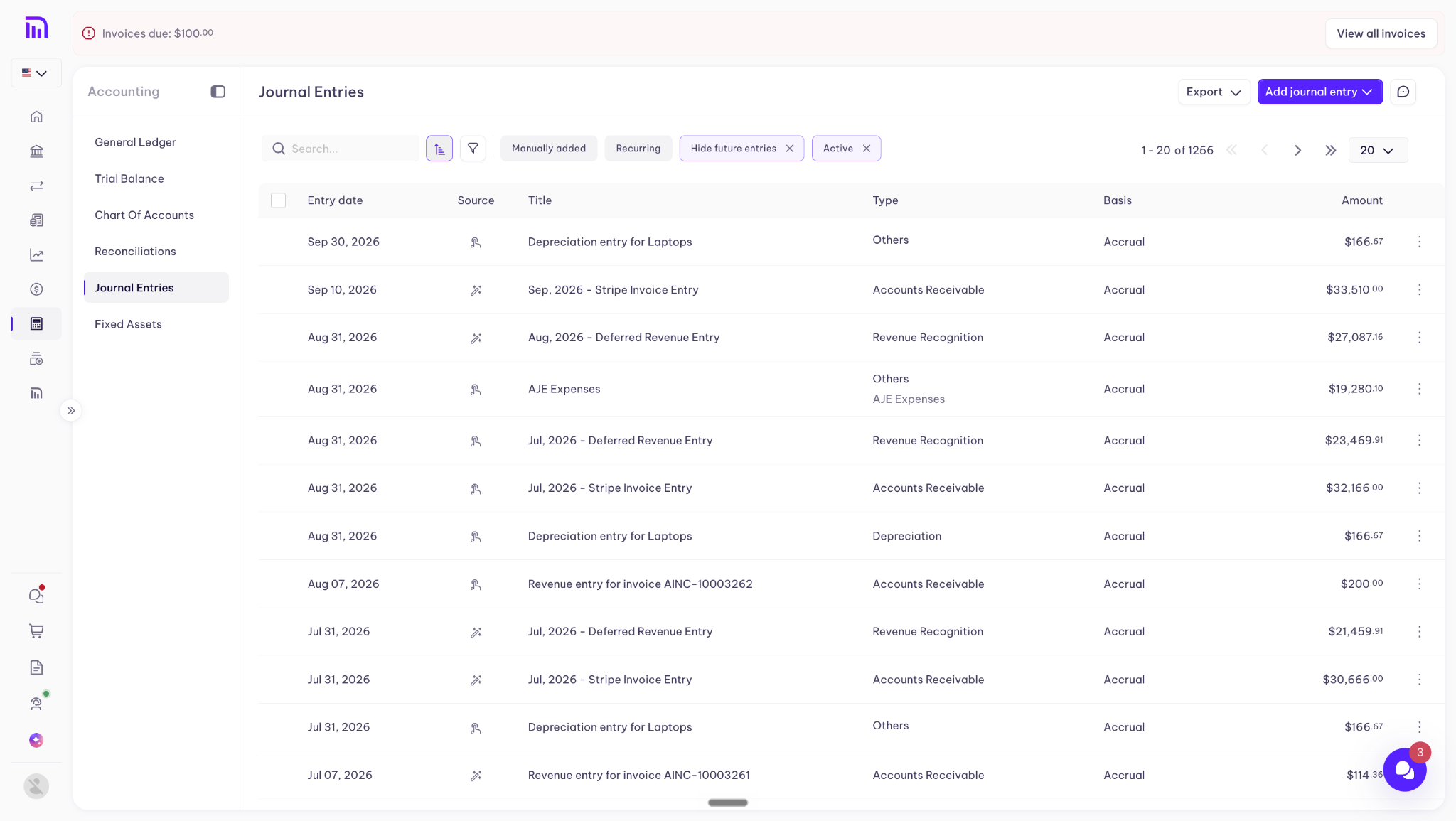
Step 1: Open Journal Entries
In the left sidebar, click Accounting to expand the section, then select Journal Entries. The list page shows all existing entries with their date, source, title, type, basis, and amount.
Step 2: Open the form
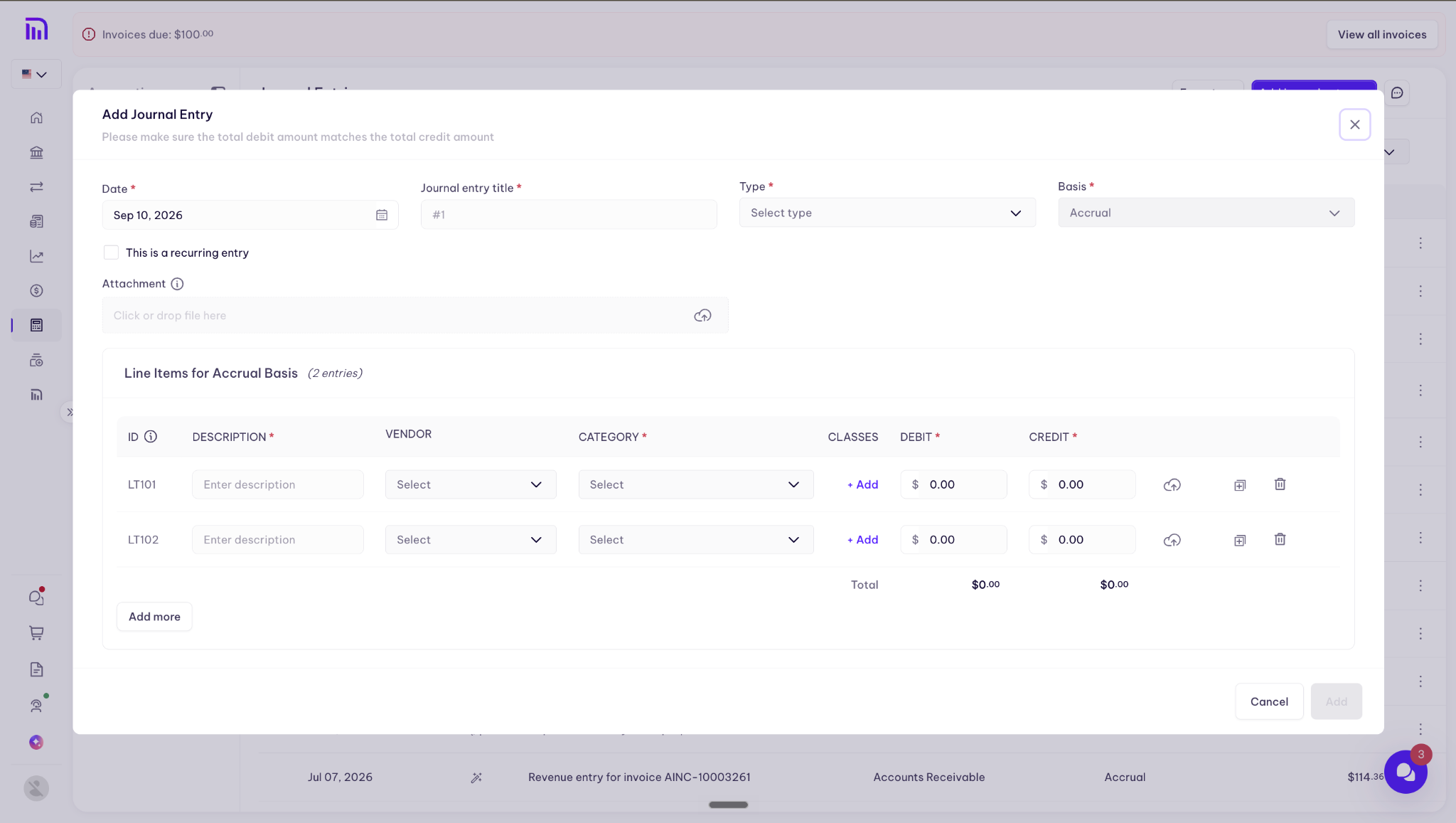
Click Add journal entry in the top-right corner. A dialog opens titled "Add Journal Entry."
Step 3: Fill in the header
Date - Defaults to today. Click the calendar icon to change it.
Journal entry title - A meaningful name, like "Office Rent - May 2026." This is what you'll be scanning for later, so make it specific.
Type - The entry type, such as Accounts Receivable or Others.
Basis - Defaults to Accrual. Change it from the dropdown if needed.
If the entry repeats, check This is a recurring entry.
Step 4: Fill in the line items
Two rows are pre-populated. For each one:
Description - A brief note on what the line represents.
Vendor - Optional. Select from the dropdown.
Category - The account category the line posts to.
Classes - Optional. Click + Add to assign a class.
Debit - The debit amount.
Credit - The credit amount.
The Total row sums both columns automatically, and the two totals must match before you can save. Click Add more if you need extra rows.
Step 5: Save
Click Add to save, or Cancel to discard. Your entry appears in the Journal Entries list, sorted by entry date.
Manual entries and system entries
Inkle Books generates journal entries automatically for connected data sources, such as Stripe invoice entries. Entries you create yourself are tagged with a Manually added source indicator, so you can always tell which entries came from a connection and which came from a person.
How do I filter the list?
Click the filter icon next to the search bar. You can filter by:
Date - Narrow to a specific date range.
Type - Filter by entry type, such as Accounts Receivable or Others.
Basis - Accrual or Cash.
Source - Manual, meaning entries you added yourself, or System, meaning entries Inkle Books generated.
Status - Active or other statuses.
Active filters appear as chips at the top of the list and can be removed by clicking the × on each one.
FAQ
Why won't Inkle let me save my entry?
Your total debit and total credit don't match. Check the Total row at the bottom of the line items and find the difference.
What's the difference between Accrual and Cash basis here?
Accrual records the entry in the period the transaction belongs to. Cash records it when money moves. Entries default to Accrual.
How do I find entries I created myself?
Filter by Source and choose Manual. Manually added entries also carry a source indicator in the list.
Can I create an entry that repeats?
Yes. Check "This is a recurring entry" in the form header.
How many line items can one entry have?
Two rows are pre-filled, and you can click Add more to insert as many additional lines as the entry needs.
Can I edit or delete an entry after saving it?
NEEDS ANSWER - the first thing someone asks after posting a wrong entry
Still have questions?
Reach out to our support team if you have any additional questions regarding filing.