How to launch your filings easily within the product
Inkle Tax makes it simple to manage, review, and launch all your tax filings from one unified dashboard. Every required filing, across entities, tax years, and form types, is automatically generated based on your entity data. This means you always have a complete, accurate list of what needs to be filed, without manual tracking or guesswork.
Once your entity details are added, the system automatically:
- Identifies every filing your company is responsible for
- Calculates the correct deadlines for each form
- Flags missing information or payment requirements
- Keeps filings up to date as your entity data changes
This gives you a reliable, real-time picture of what’s due and what requires action.
Managing your filings through Alarms and Cart
Inkle Tax gives you two easy ways to keep track of your upcoming filings:
1. Through Alarms
Whenever a filing requires your attention like missing details, upcoming deadlines, compliance checks, it appears as an Alarm. Alarms ensure you don’t miss anything time-sensitive or mandatory.
2. Through the Cart
If a filing requires payment to proceed, it is added to your Cart.
This lets you review, confirm, and launch multiple filings together in one place.
Both Alarms and Cart items automatically show up inside the Filings tab.
This gives you a consolidated view of every filing that needs action, no need to switch screens.
From here, you can decide to:
- Pay & launch a filing
- Mark not required if the filing doesn’t apply to you
- Mark filed externally if you handled it outside Inkle
- Enquire to get support from the tax team
This helps you stay in control and avoid missed deadlines.
Understanding the status counters
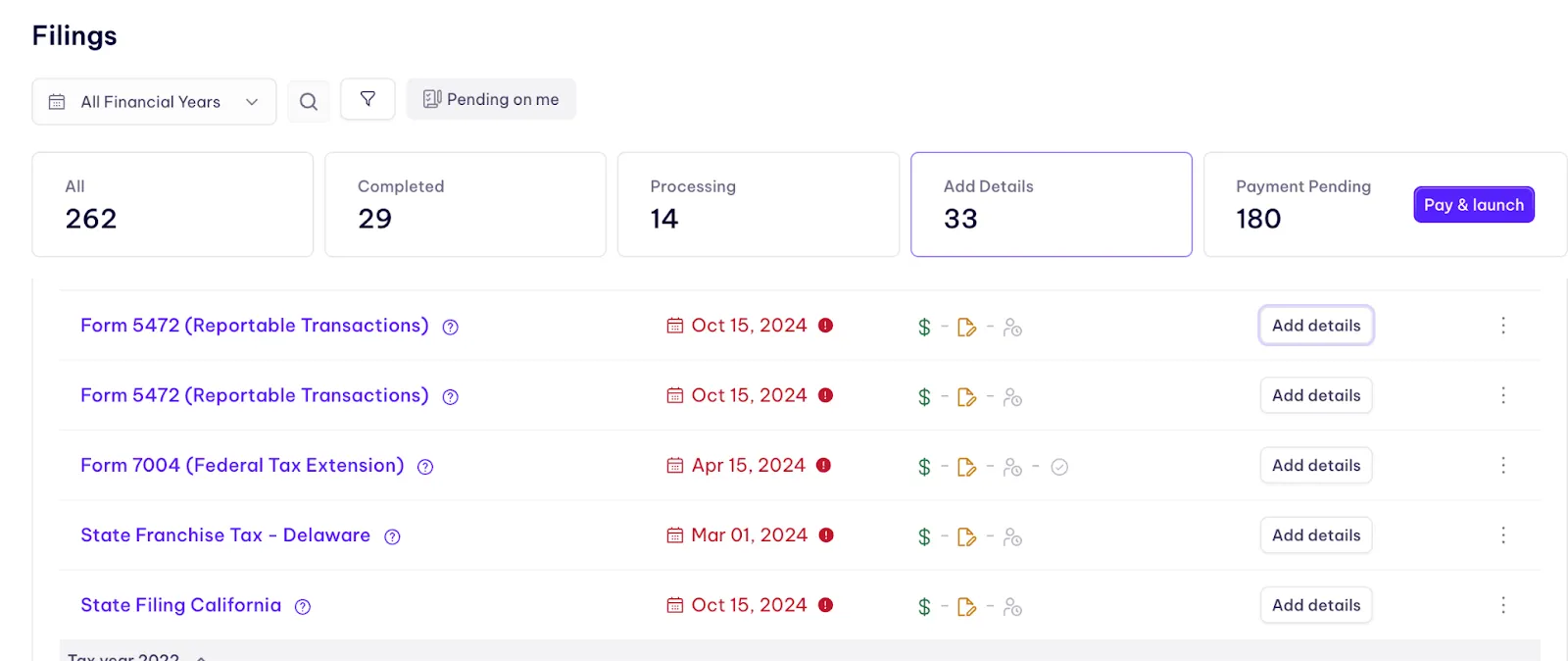
At the top of the Filings page, you’ll see clear counters that show the state of all filings:
- All - Total number of filings across all years and entities
- Completed - Everything successfully filed
- Processing - Filings currently being handled by the Inkle team
- Add Details - Filings waiting on information from you
- Payment Pending - Filings waiting for you to complete payment to launch
These categories make it easy to prioritise what needs your attention right now.
Add Details
If a filing needs extra information from you before it can be launched, it will appear under Add Details. These are forms the team cannot proceed with until you fill in the required fields - such as state PINs, ACH payment information, or supporting documents.
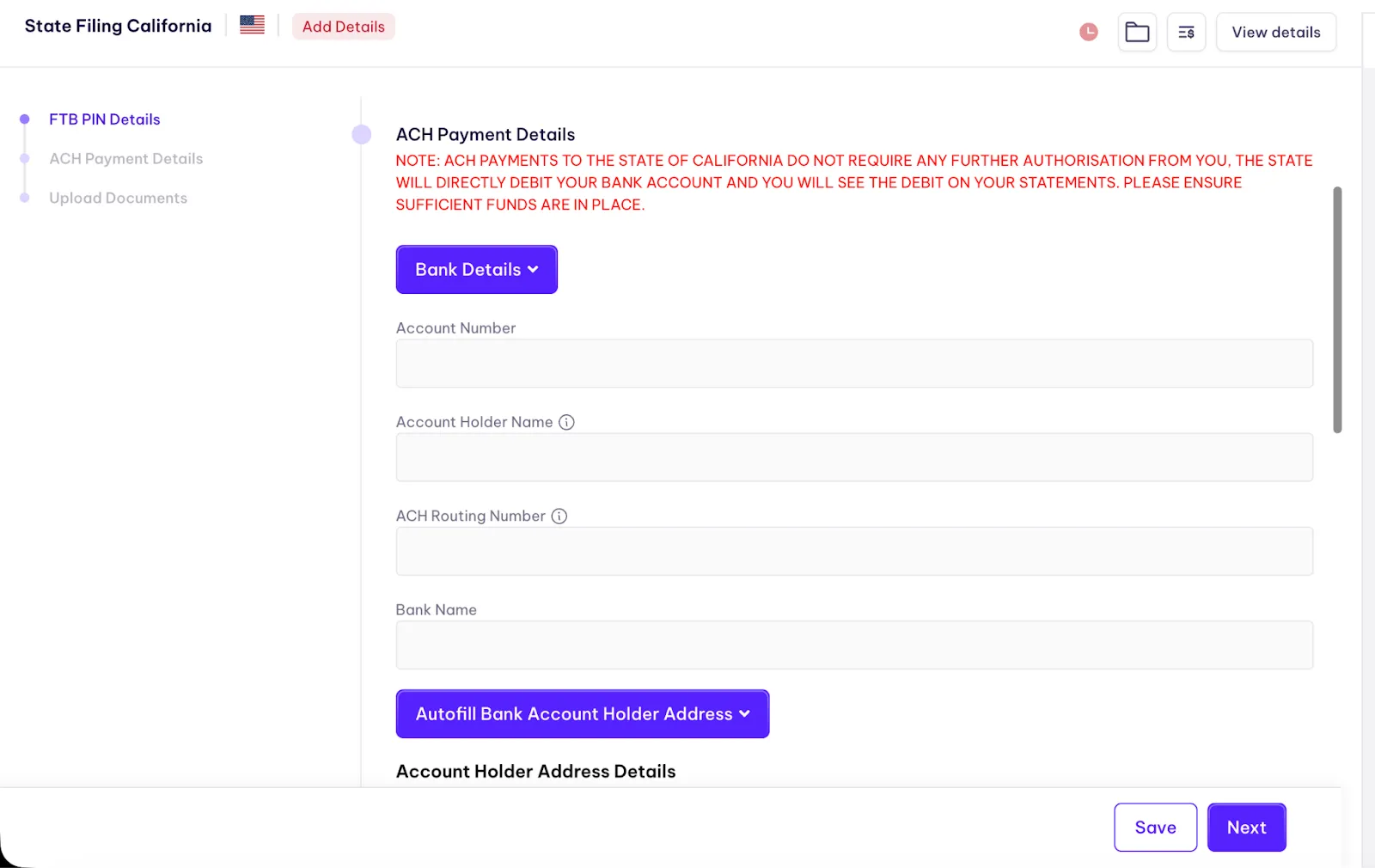
When you click Add details, you’ll see a guided form like the examples above. Once the missing information is added, the filing automatically moves to the next stage (Payment Pending or Processing).
Still have questions?
Reach out to our support team if you have any additional questions regarding filing.