How to add a new entity in Inkle Tax
Adding your entities helps Inkle Tax centralise all domestic and foreign records in one place. This step keeps your compliance, filings, and bookkeeping tied to the right entity, and gives you a single dashboard to manage everything.
When you add an entity, Inkle Books auto-fills details based on your past entries, so you only fill in what is missing. This creates a clean, organised management system for all your entities.
Steps to add an entity
- Go to My Entities
- Open the Overview tab
- Click Add Entity
- Fill in the required fields:
• Legal entity name
• Country
• State
• Formation type (non profit, partnership, or company) - Review the auto-filled information and update anything as needed
- Click Save
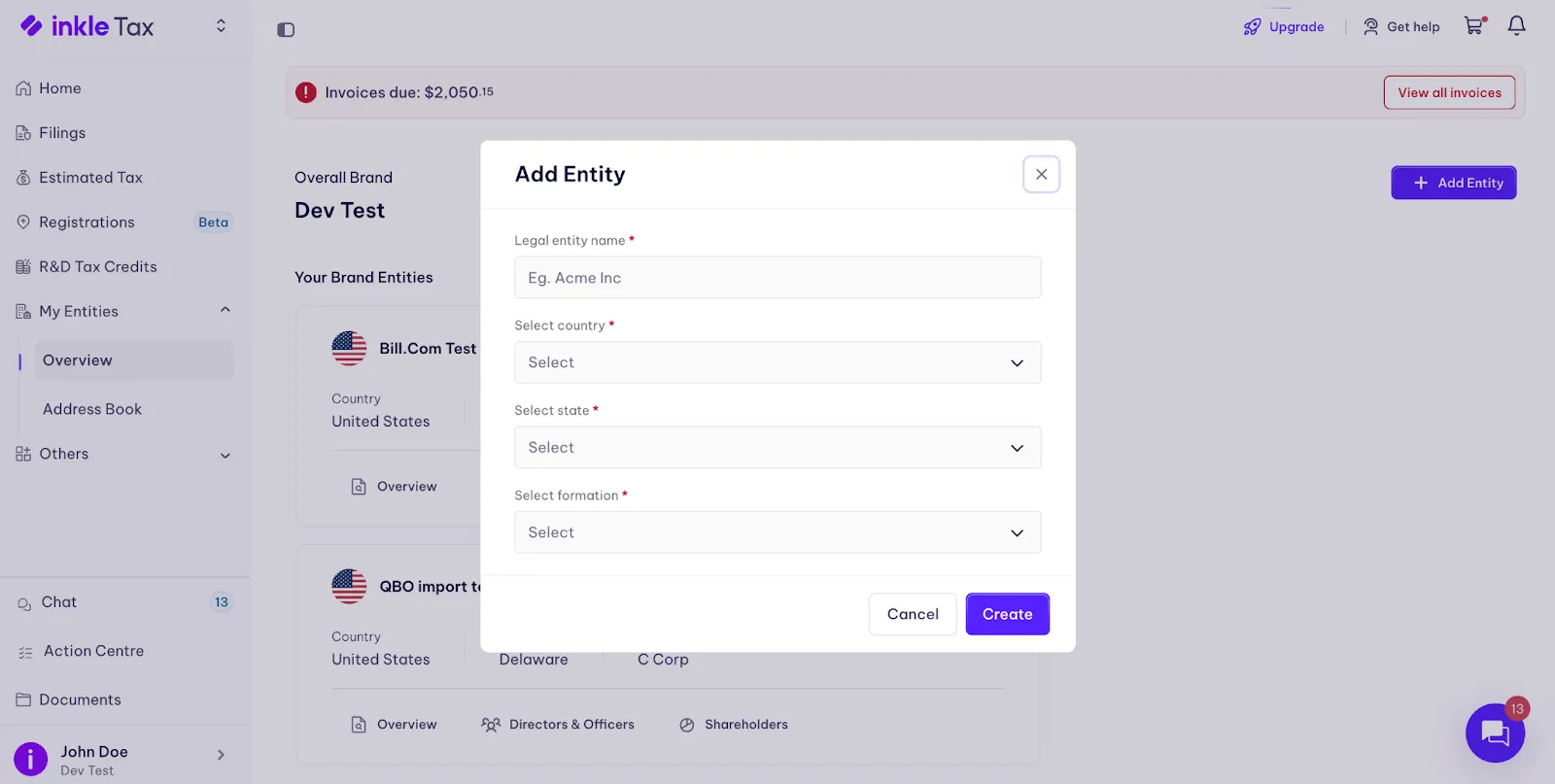
Your new entity will now appear in the dashboard, making it easy to track, edit, and manage all entity information from one central place.
How to add more information to your entity
After creating a new entity, you can complete or update additional details in the Overview tab. These fields help Inkle Tax automate state filings, track compliance needs, and maintain accurate records for tax and reporting.
Overview:
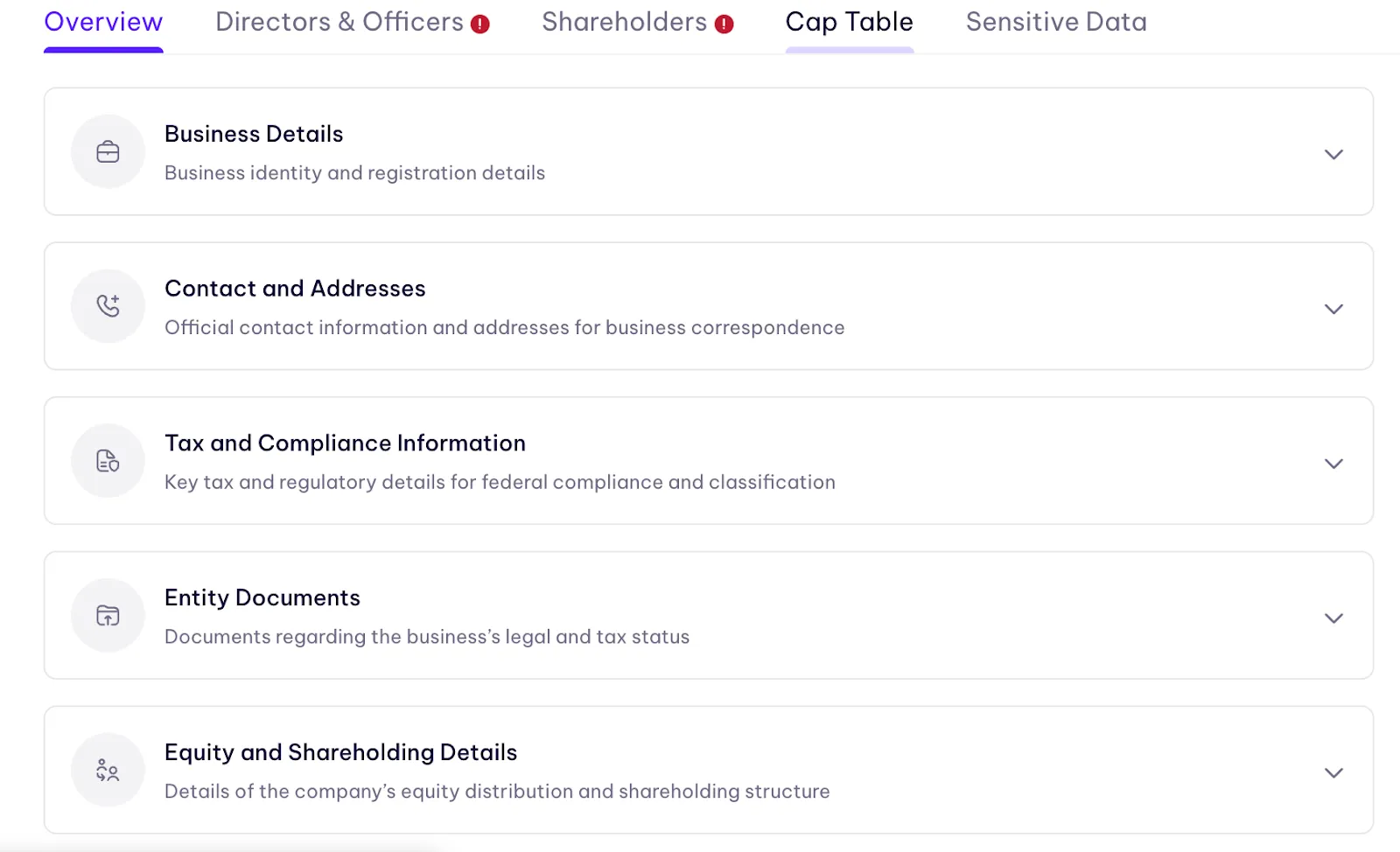
Business details
Under Business Details, you can enter or update key information about your entity:
- Date of incorporation - Add the official incorporation date as shown on your formation documents.
- Entity status - Select whether the entity is Active, Inactive, or Dissolved.
- Federal EIN - Enter your Employer Identification Number if it isn’t already on file.
- Major business activity - Describe your primary business activity (for example, “software subscriptions” or “consulting services”). This helps determine tax requirements and state-level obligations.
All changes you make here update automatically in your entity dashboard and inform deadlines, alerts, and filings handled by Inkle Tax.
Contact and addresses
These details determine where official notices go and who the IRS or state agencies contact.
- Business email and phone: These are used for correspondence, tax notices, and communication from Inkle’s filings team.
- Business address: Often your principal place of business.
Some states require this to be a physical address, not a PO box. - Mailing address: Where you want IRS and state correspondence delivered.
Many founders use a different address here for convenience or privacy.
Tip: If you operate remotely or don’t have a physical office, consider using a registered agent address or mail-handling service.
Tax and compliance information
This section helps Inkle map your federal and state tax obligations correctly.
- Tax year end: Determines your filing deadlines. Most US companies follow a calendar year, but C-Corps can elect a fiscal year.
- NAICS code: A six-digit industry classification code.
Used by the IRS, states, and banks to understand what your business does.
Choosing the right code helps avoid misclassification issues. - Subsidiary entity: Mark this if the entity is owned by another company.
This affects reporting structure and certain tax forms. - Intellectual property owner: Select this if the entity holds your IP.
Important for franchise tax calculations and transfer pricing. - IRS tax office: Helps Inkle identify the IRS processing center relevant to your entity.
These details directly impact the accuracy of your tax filings and deadlines.
Entity documents
Upload key documents that Inkle uses during filings and compliance checks.
- EIN letter or Form SS-4 Confirms your company’s EIN and is often required for state filings or opening accounts.
- Certificate of incorporation Your legal proof of formation. Useful for foreign qualifications, annual reports, and ownership verification.
- W-Form: Helps determine withholding obligations. If you don’t have one, Inkle can help generate it.
Uploading your documents once ensures faster processing and fewer follow-ups from the Inkle team.
Equity and shareholding details
This section captures your company’s issued shares. It does not ask for ownership percentages or cap table details — only what’s officially issued.
- Issued common shares: The total number of common shares your company has authorised and issued. Used for franchise tax, ownership calculations, and filings that require capital details.
- Issued preferred shares: Only needed if your company has raised capital or created a preferred class. Helps determine reporting requirements and valuation thresholds.
Tip: If you're unsure of your issued share counts, check your incorporation documents or cap table tool.
Jurisdictions
On the right side, you’ll see a Jurisdictions panel. This is where you can store state-specific information required for compliance.
Each jurisdiction card includes fields such as:
- SOS Number
- Supporting documents
- Foreign qualification date
- SUI / UID numbers
- Sales Tax ID number
Click the edit icon on any jurisdiction to update these details. You can also click Add to include additional states where your entity operates or is registered.
Keeping this information complete ensures Inkle Tax can track state obligations accurately and surface deadline alerts for each jurisdiction.
Directors & Officers
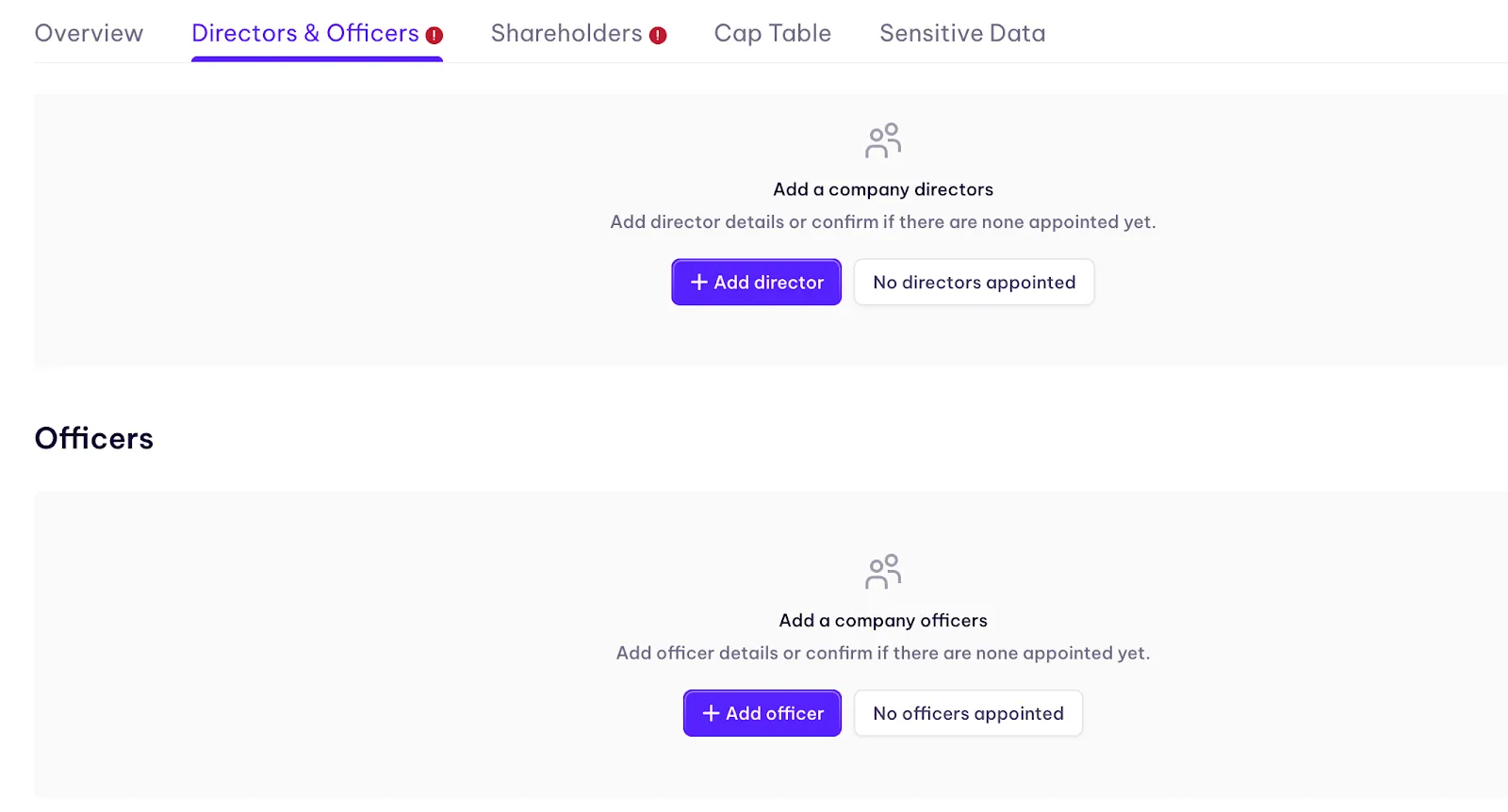
The Directors & Officers tab lets you record the individuals responsible for managing and governing your entity. Keeping this section complete ensures accurate compliance filings, annual reports, and state-level obligations.
Adding directors
If your entity has appointed directors, you can add their details directly from this tab.
To add a director:
- Go to Directors & Officers
- Under Directors, click Add director
- Enter the required information in the modal that appears
- Save your changes
Once added, directors will appear in the list with their roles and details, and you can edit or remove them at any time.
If no directors have been appointed
If your entity has not yet appointed any directors, you can confirm this status within the platform.
To mark that no directors are appointed:
- Click No directors appointed
- A confirmation modal will appear with the message:
“Please confirm that no directors have yet been appointed for <Entity Name>. This will be recorded as the official status until the first director is added.” - Click Confirm
This sets the entity’s official status as having no directors, and you can update it later once directors are appointed.
Adding officers
Below the directors section, you can similarly add key officers (such as CEO, CFO, Secretary).
To add an officer:
- Scroll to Officers
- Click Add officer
- Enter the officer’s details
- Save
Shareholders
The Shareholders tab records who legally owns shares in the company. This information is important for compliance, cap tables, state filings, and tax reporting. Even if you track ownership elsewhere (like Carta, AngelList, Pulley), Inkle Tax still needs a simplified record to determine obligations correctly.
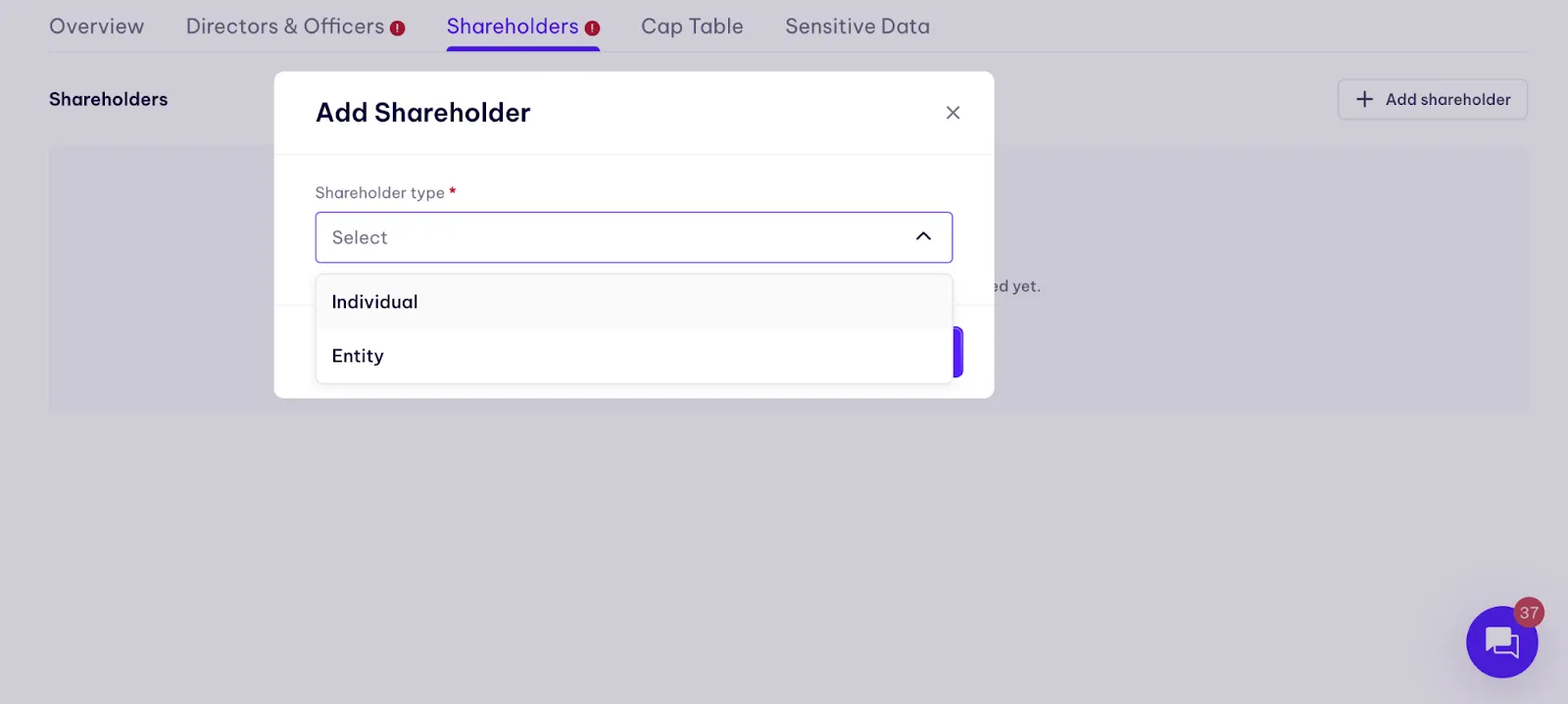
Adding a shareholder
If your company has issued shares, you can add each shareholder individually.
To add a shareholder:
- Go to the Shareholders tab
- Click Add shareholder
- Enter the shareholder’s name, share class, and number of shares held
- Save
Each added shareholder will appear in the list once saved, and you can edit or update their details anytime.
If your company has not issued any shares yet
Early-stage or newly formed companies often haven’t issued shares formally, even if founders assume “ownership.”
If this applies to your entity:
- Click No shares issued yet
- Confirm the status in the modal that appears
This lets Inkle Tax know there is no active share issuance to account for. You can update this later once shares are officially issued.
Why this matters
- States and the IRS use ownership information to determine filing requirements
- It affects franchise tax calculations in certain states
- It ensures your entity’s compliance documents are consistent with your cap table
- It avoids mismatches when filings reference ownership or authorised shares
Cap Table
The Cap Table tab allows you to upload your company’s official capitalization table. This helps Inkle Tax verify ownership, understand share classes, and prepare filings that depend on accurate equity information.
Even if you already manage your cap table on tools like Carta, Pulley, or Excel, uploading the latest version here ensures Inkle has everything needed for tax and compliance work.
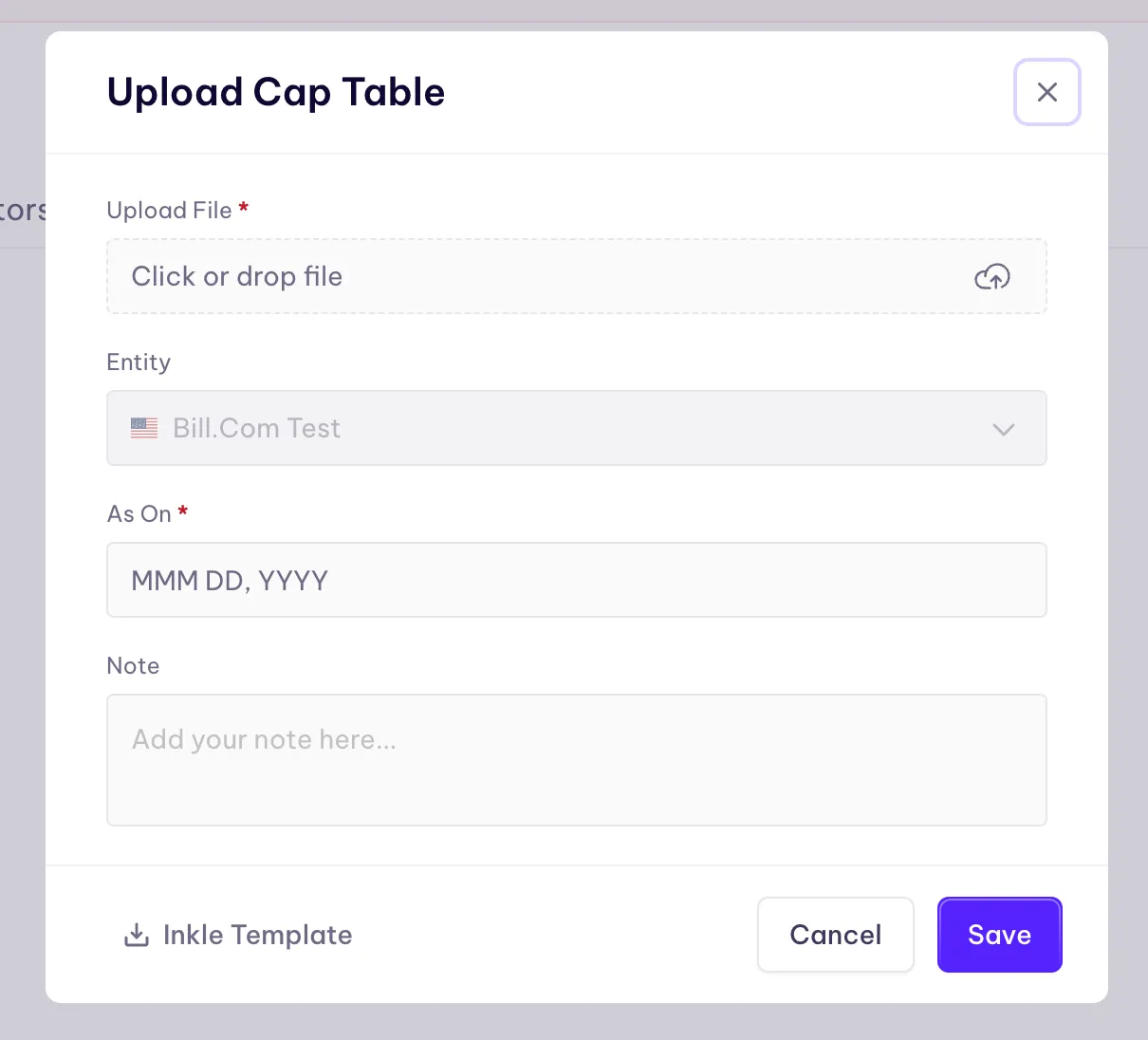
Uploading your cap table
To upload a cap table:
- Go to the Cap Table tab
- Click Upload
- Drop your file into the upload box (PDF, Excel, or CSV)
- Select the correct entity (auto-filled for you)
- Add the As On date - this tells Inkle which version of your cap table the file represents
- Add an optional note if you want to clarify anything (e.g., “post-seed update”, “SAFE conversions included”)
- Click Save
If you don’t have a cap table file
You can use the Inkle Template at the bottom of the modal.
This is especially helpful for early-stage founders who don’t yet have a structured cap table or only track ownership informally.
Sensitive Data
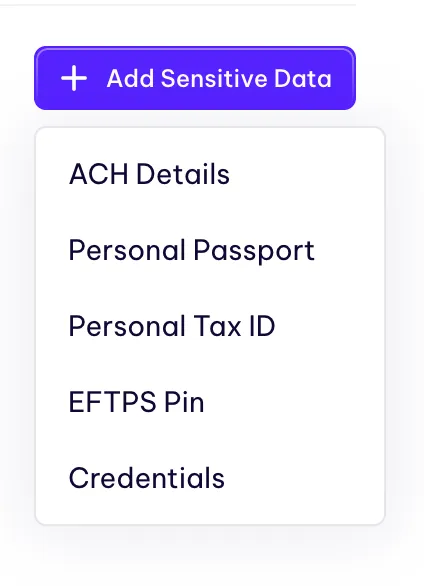
The Sensitive Data section is a secure place to store information required for specific tax filings, payments, and authorizations. Not all filings need this data, but when they do, having it stored safely in one place helps Inkle process your returns faster without repeated requests.
Everything added here is encrypted and only accessible to the Inkle team members who actively work on your filings.
What you can add:
Click Add Sensitive Data to add one of the following:
- ACH details
Used only when a filing requires the IRS or state agencies to debit or credit your account directly.
Typically needed for e-payments, estimated taxes, or payroll-related filings. - Personal passport
Required only for certain international founders or when a state requests identity verification.
You can upload a scan or an image. - Personal Tax ID (ITIN/SSN)
Sometimes required for federal filings, officer verifications, or beneficial ownership reporting.
This field is strictly protected and only used when filing rules mandate it. - EFTPS PIN
Allows Inkle’s tax team to schedule payments securely through the federal payment system.
If you don’t have one, the IRS can mail it to you. - Credentials
Used for specific state portals (e.g., paying franchise tax, filing annual reports).
Inkle stores portal logins so you don’t need to share them repeatedly.
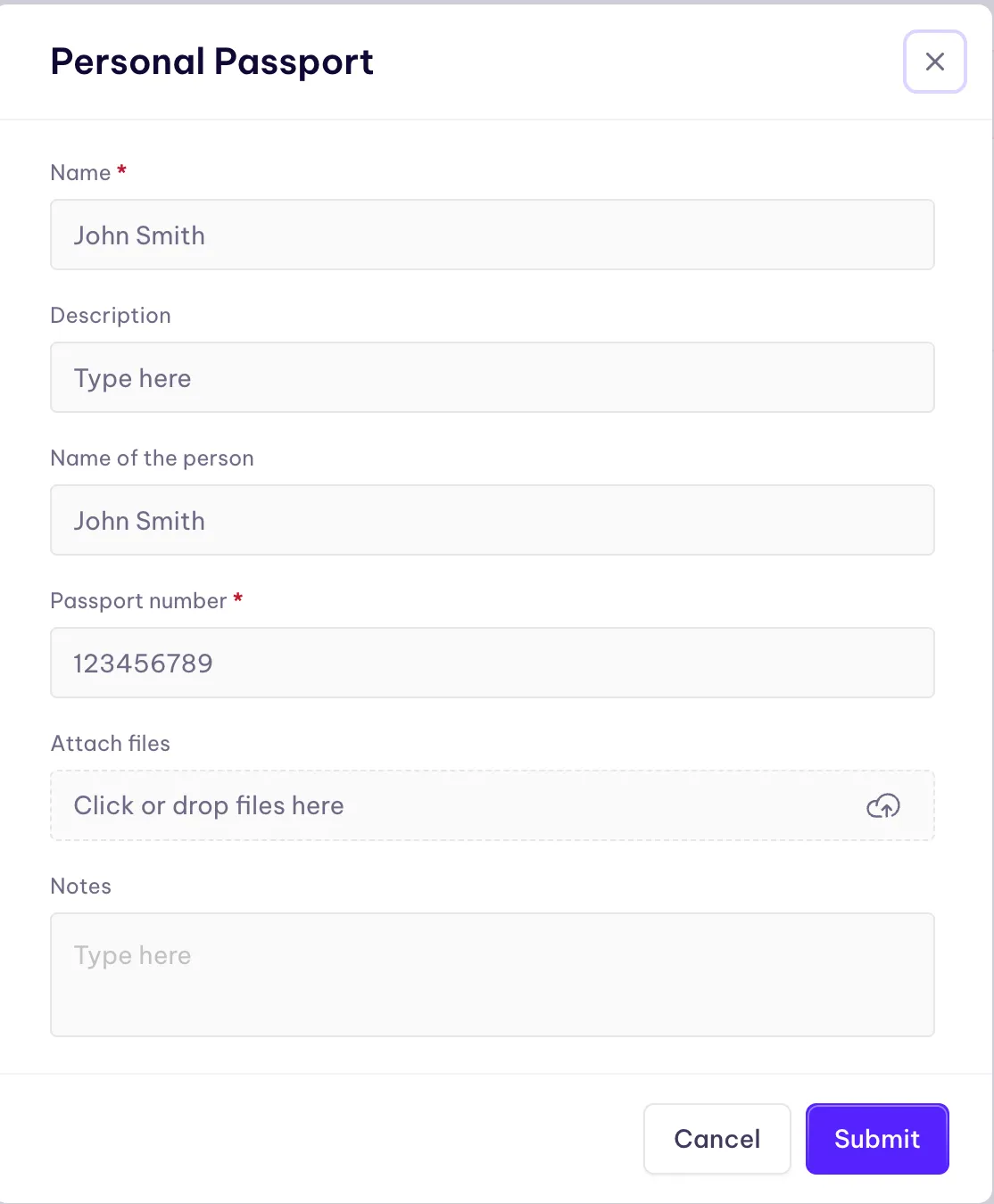
How to add an item
- Click Add Sensitive Data
- Select the type of data you want to add
- Enter the required fields: usually name, number, and optional notes
- Save
Each item appears as a card once saved, and you can edit or delete it at any time.
Why this matters
- Reduces back-and-forth during filings
- Speeds up payment processing and return submissions
- Prevents missed deadlines caused by missing identity or payment details
- Keeps all sensitive information encrypted and centralized instead of scattered across emails or spreadsheets
Final Summary
By adding your entity and completing these sections, you give Inkle Tax everything needed to automate filings, track deadlines, and keep your compliance accurate throughout the year. Once the information is saved, Inkle manages the complex parts of compliance so you can focus on running your business.
Still have questions?
Reach out to our support team if you have any additional questions regarding filing.